|
PaperSave Windows Client installation instructions |

Welcome to PaperSave Windows Client! If you are seeing this page, then you are downloading and installing the PaperSave Windows Client for the first time.
For Google Chrome, you should see a download prompt in the bottom-left corner of the Chrome window.

Please click on “Keep” to continue the download. Click here if the download doesn’t start in 5 secs.
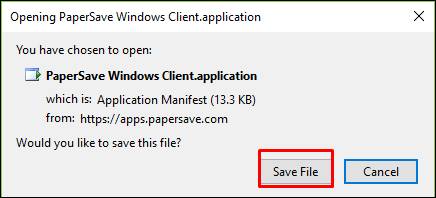
For Mozilla Firefox, you should see a download prompt in the
center of the Mozilla Firefox window as shown below. Please click on “Save File” to continue the
download the ‘PaperSave Windows Client.application’ file.
Follow the steps below after you finish downloading PaperSave Windows Client:
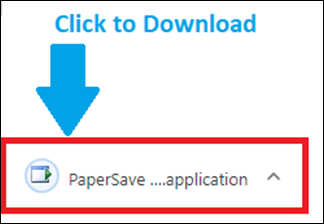
1) a. For Chrome, after you click on “Keep”, you will see the following prompt in the bottom-left corner of the Chrome Window. Click on the “PaperSave …application” file that was downloaded by Chrome.
b. For Mozilla, after you click on “Save File”, Mozilla will download the executable file. Go to Downloads and click on the “PaperSave Windows Client.application” file that was downloaded by Mozilla Firefox. Then, please click “OK” to continue.
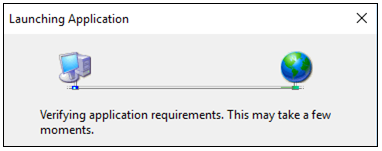
2) The PaperSave Windows Client will now launch and show the following pop-up window:
3) The application will then show an “installation” confirmation prompt. Click on “Install” to confirm the installation of PaperSave Windows Client:
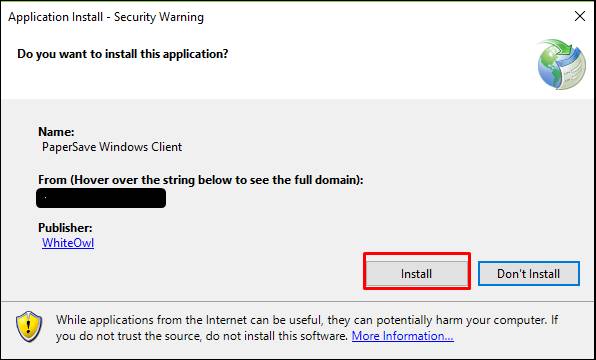
4) After clicking “Install”, you should see the following prompt displaying the installation progress:
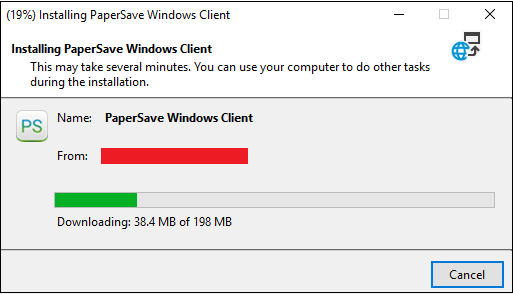
5) You’re almost done with installing PaperSave Windows Client.
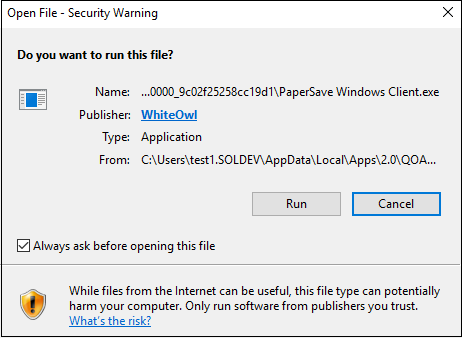
6) Once the installation is complete, you may be prompted to supply your credentials. This is for PaperSaveCloud customers only. On-premise PaperSave customers should only receive a prompt when using a computer that is not a member of the domain that the PaperSave Application Server is installed within.
7)
If the
Authentication is necessary, then you will first be prompted for the username.
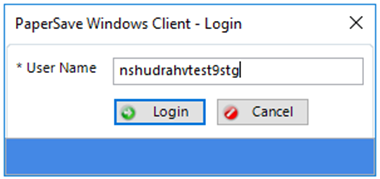
8) Depending on the authentication mechanism setup for your system, you may be prompted to provide your username & password with one of the following prompts.
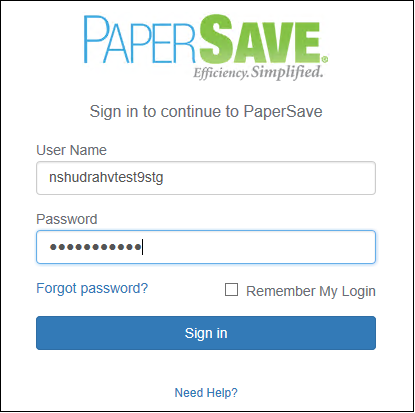
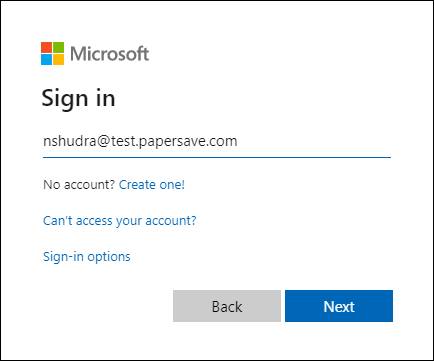
Once you have logged in, then please try your scanning operation again.
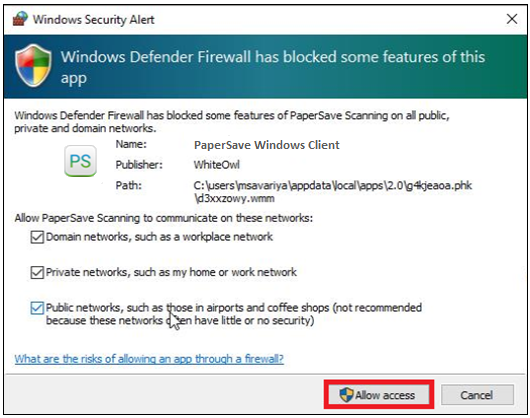
Note: Kindly ensure that if you encounter the Windows Security Alert, you need to allow PaperSave Windows Client to communicate on these networks by checking tick mark against them as shown below.